
Fecha:
noviembre 26, 2026
 Блог
Browser problems can make an online casino appear unavailable when the real cause is an outdated device, blocked site data, unstable Wi-Fi or a mismatch between the service…

Browser problems can make an online casino appear unavailable when the real cause is an outdated device, blocked site data, unstable Wi-Fi or a mismatch between the service and the browser. The Crowngreen information available to New Zealand readers describes a responsive website designed for smartphones and tablets, but it also notes that market access and account availability must be checked against current terms. A careful troubleshooting routine can separate a technical fault from a jurisdiction, account or service limitation before you spend time changing settings.
Start by separating access from eligibility
A page that will not load is not always suffering from a browser fault. Offshore gambling websites may restrict visitors by location, and the available material is inconsistent about whether New Zealand residents are accepted. One source describes New Zealand-facing access, while the published restricted-country information includes New Zealand. This means a connection attempt should not be treated as proof that registration or play is permitted.
First, check whether the problem affects the entire website or only a particular account page. If the homepage loads but the sign-in, cashier or game lobby does not, the cause could involve account status, verification, location controls or a temporary service issue. If no page loads, test another ordinary website in the same browser. This simple comparison helps distinguish a general internet problem from a service-specific response.
A virtual private network, proxy or unusual DNS setting can also make location detection unreliable. Avoid using tools intended to disguise your location, as they may conflict with site rules and create additional account-security concerns. The safest approach is to use an ordinary local connection, read the current jurisdiction terms and contact support if the site gives a restriction message. Technical troubleshooting cannot override an eligibility condition.
Which browser settings make the biggest difference?
Compatibility problems commonly come from old browser software, disabled JavaScript or blocked cookies. Modern game lobbies and payment pages usually need scripts to display menus, authenticate sessions and communicate with the server. Update the browser through its normal device settings, then close and reopen it. On a phone or tablet, also install pending operating-system updates, since browser components may be tied to the system.
Private-browsing modes can be useful for testing, but they often discard cookies when the window closes and may block storage features that a session needs. Try a normal window with cookies and JavaScript enabled for the website. If the page is blank or buttons do nothing, temporarily disable extensions such as ad blockers, script filters and aggressive privacy tools, then reload. Re-enable them afterwards and allow only the minimum site permissions required.
Clearing all browser data is not always the best first move because it removes saved sessions and preferences. Begin by clearing cached files for the affected site, or test in a separate browser profile. If the issue disappears in a private window or second browser, an extension or stored data is probably involved. Do not save passwords on a shared device, and never provide login codes to someone claiming to offer technical assistance.
Test the connection without risking account security
When a lobby keeps loading, disconnects or shows missing images, test the connection methodically. Move closer to the Wi-Fi router, pause large downloads and check whether other household devices are using substantial bandwidth. If possible, compare Wi-Fi with a trusted mobile-data connection. A difference between the two points towards the home network, router or internet provider rather than the browser itself.
Restarting the router can clear a temporary network fault, while restarting the device can refresh stalled browser processes. Avoid repeatedly pressing deposit, withdrawal or game buttons during a delay. A slow response may eventually complete even though the page looks inactive, and repeated submissions can create confusion about what the service received. Wait, check the account history or transaction record, and contact support before trying again if money may be involved.
Public Wi-Fi is particularly unsuitable for account access because networks may block gambling-related domains, intercept traffic or require a sign-in page that interrupts secure sessions. Use a private, trusted connection and confirm that the address bar shows the expected secure connection indicator. New Zealand’s online safety guidance from Netsafe offers broader advice about protecting accounts and personal information, which is useful when troubleshooting from phones, tablets or shared networks.
Mobile browsers need a slightly different check
A responsive website should adjust to a phone or tablet screen, but that does not guarantee identical behaviour across every device. Rotate the screen if a control is hidden, close other apps to free memory and make sure the browser is not displaying a heavily zoomed page. If a game window appears cut off, return to the main lobby rather than forcing the device to load several game tabs at once.

Mobile operating systems may suspend inactive browser tabs to save battery. Returning to an old tab can therefore restore a stale session rather than a live page. Refresh only after noting any important message on screen, and sign in again through the normal page if required. Do not create another account because a session has expired; the published terms described in the source material restrict users to one account.
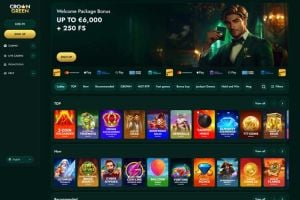
The available descriptions refer to browser-based mobile access and, in one account, an installable progressive web app. A progressive web app is still based on the browser and should not be assumed to be a native application from an official app store. If an installation prompt appears, check the browser’s address and permissions first. Avoid unofficial downloads, modified applications and files sent through messages, as these can expose passwords or payment information.
Know when troubleshooting should stop
Repeated connection errors may reflect a service outage, maintenance period or account restriction rather than a fault on your device. Look for a clear notice on the website, then try again later using one updated browser and a stable connection. Testing endlessly across many devices can create duplicate sessions and make it harder to describe the original problem accurately.
Before contacting support, record the practical details: device type, operating system, browser version, approximate time, internet connection and the exact wording of any error. Take care not to include passwords, one-time codes, full card numbers or identity documents in screenshots. If verification is requested, use only the official support route shown on the live website and confirm that the address is genuine before sending anything.
Stop immediately if a page asks for unusual software, remote-control access, a password by email or payment to “unlock” an account. A legitimate technical explanation should not require surrendering control of your device. If the issue concerns a pending transaction, account restriction or identity check, only the operator can clarify the account-specific position. If the site remains inaccessible, do not assume that changing browsers makes the service available or lawful in your location.
Browser compatibility questions
Why does the site work on my phone but not my computer?
The devices may use different browsers, extensions, security settings or network connections. Update the computer’s browser, test a private window, disable extensions temporarily and compare another network. If only one device fails after these checks, clear that browser’s cached site data or use a fresh profile rather than repeatedly submitting account forms.
Should I install a separate mobile app?
Not unless an official source clearly identifies one. The available material describes browser access and refers to a possible progressive web app, which is different from a native iOS or Android application. An unexpected download, file or installation request should be treated cautiously, especially if it asks for broad permissions or account credentials.
What should I do if a page freezes during a transaction?
Do not refresh repeatedly or submit the same request again. Note the time, wait for the connection to respond, then check the relevant account or transaction record. If the result is unclear, contact support through the live website and provide limited technical details without sharing passwords, security codes or complete payment information.